
Playlists, schedules and groups: how a signage API decides what plays now
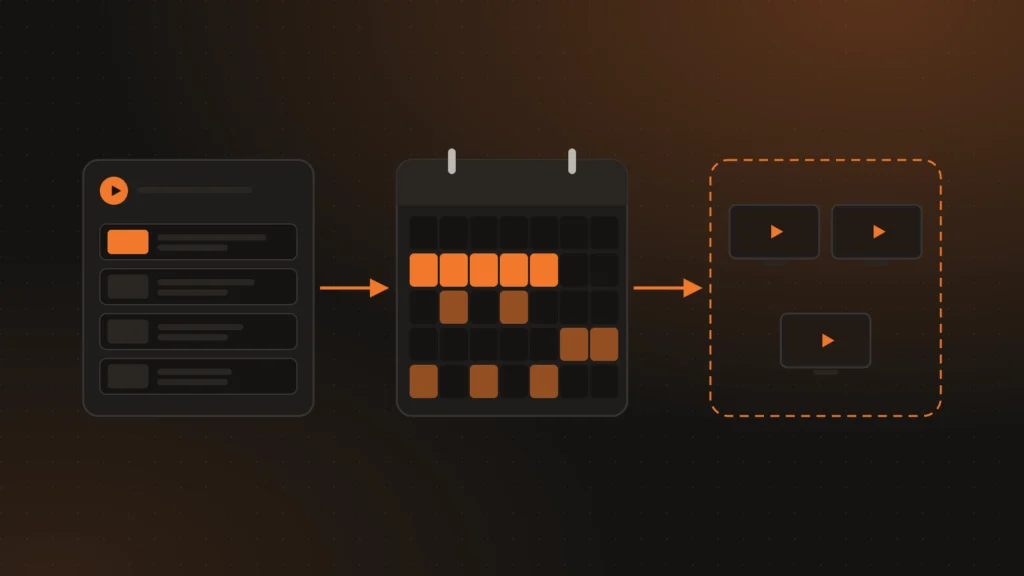
At the heart of any signage system is a question every screen asks over and over: what should I play now? In ChronoFlow the API answers it from four pieces: media, playlists, schedules and screen groups. This article explains how we model them, how the winner is picked when several schedules overlap, and how a screen learns about a change in a second or two.
Media and playlists
A media item is an image, a video or a YouTube link from the account’s library. A playlist is an ordered list of media with two defaults: how long each image lasts (10 seconds unless someone says otherwise) and whether videos play with sound. By default they are muted, because many TVs only autoplay video when it is muted, and sound is not always welcome in a lobby.
Each playlist item stores its position and can have its own duration, its own transition (none, fade, slide or zoom) and its own sound setting. The same image can last 5 seconds in one playlist and 30 in another without duplicating the file.
Schedules and groups
A schedule assigns a playlist to a target for a period. The target can be a screen or a group of screens: scheduling “the breakfast menu” for the “Cafés” group sends it to every screen in the group, including the ones added later.
There are several types: time window (from one time to another, repeating daily or weekly), calendar dates, days of the week and recurrence rules. The free plan uses time windows only and one active playlist per screen; Pro has every type. Each schedule also has a priority from 0 to 500 to break ties with others of the same source.
All times are stored in UTC, and clients convert them to local time for display and editing. Windows that cross midnight, like 22:00 to 02:00, are supported.
What plays now
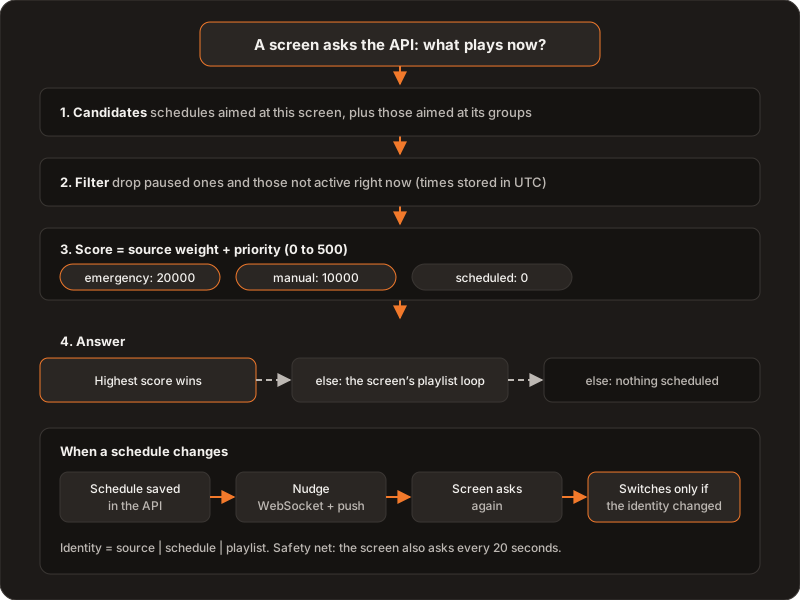
When a screen asks what to play, the API always follows the same steps:
- Candidates. The schedules aimed at that screen and those aimed at any of its groups.
- Filter. Drop the paused ones and those not active right now.
- Score. Each candidate adds a weight for its source to its priority. An emergency weighs 20000; a manual override, 10000; a regular schedule, 0. Since priority never exceeds 500, no regular schedule can hide a manual override, and no manual override can hide an emergency.
- Answer. The highest score wins. If none is active, the screen’s playlist loop plays. If there is no loop either, the answer is that nothing is scheduled, and the screen says so.
The loop belongs to the screen, not to a schedule
The obvious way to offer “play this playlist on a loop” was one more schedule. We ruled it out: that schedule would clutter the schedule list, compete with real schedules, and need a priority of its own. Instead, the loop is screen state: each screen can have a background playlist that plays when no schedule wins. The rule stays simple: schedules are in charge and the loop fills the gaps. The free plan allows one screen on a loop, and Pro allows twenty.
Pausing instead of deleting
If an account goes back to the free plan with more schedules or screens than it allows, the extra ones are paused with a reason, not deleted. The filter step ignores them, and going back to Pro reactivates them as they were. The same goes for the loop: a screen can have its loop paused without losing it.
How a screen learns about a change
When a schedule is saved, the API queues a nudge for the affected screens and sends it two ways at once: the screen’s private WebSocket channel and a push notification. The nudge carries no content; it only says “ask again”. The screen asks and compares the answer with what it is playing using an identity made of the source, the schedule and the playlist. It only switches if the identity differs, so a repeated nudge restarts nothing.
The identity has three parts for a reason: comparing the schedule alone was not enough, because when no schedule is active that value is empty both when the screen is on its loop and when it has nothing, and the screen missed the switch from one to the other.
With the WebSocket connected, a change reaches the screen in one or two seconds. If the nudge is lost, the screen still asks every 20 seconds, so it is never out of date for longer than that.
Remote commands
Besides schedules, the Controller can send commands to a screen or a group: play, pause, stop, skip or restart. Each command goes through states (accepted, delivered, confirmed or failed) and the screen confirms it with its playback state. When the command targets a group, screens silent for more than a minute are skipped and reported as such, instead of leaving the command waiting forever.
Where each thing lives
The API follows a strict layered architecture: controllers only orchestrate the request, services hold the rules (scoring, plan limits, pausing on downgrade) and repositories are the only ones that touch the database, always filtering by owner. A screen never sees another account’s schedules because the query cannot even ask for them.
What we would do differently
Storing everything in UTC makes comparing and sorting simple, but a 9:00 to 17:00 window defined in winter shifts by an hour when daylight saving time starts in countries that use it. If we designed it today, we would store recurring windows as local time plus a time zone and convert to UTC when evaluating them, which is what the person scheduling has in mind.
Further reading
Who asks the questions: Controller and Player in one app. Where the files live: object storage by plan. The product: ChronoFlow. If you are modeling scheduling or content rotation: Services.