
Controller and Player in one Flutter app: one mode per device
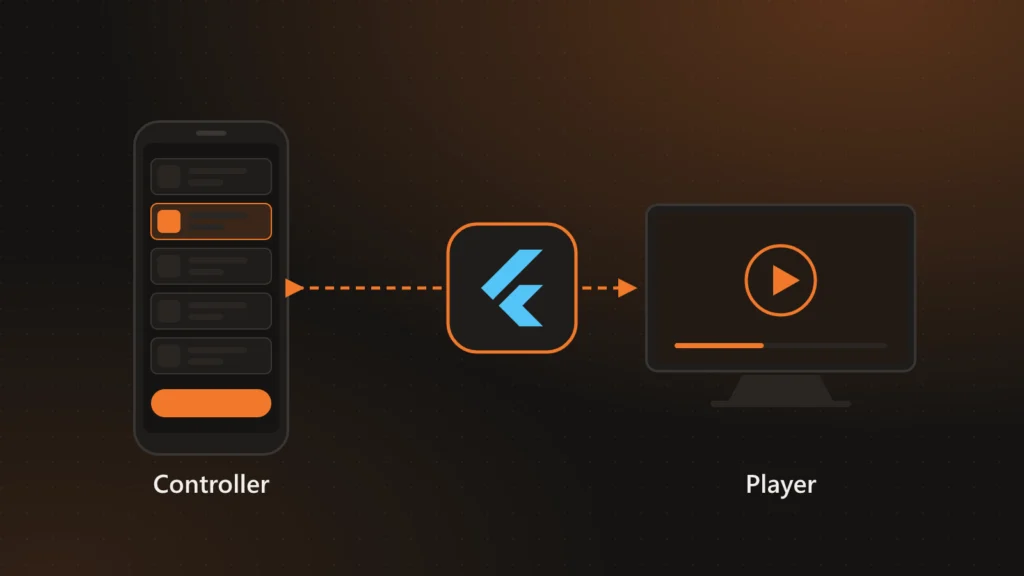
Digital signage has two kinds of device. One is the screen: a TV in a lobby, a tablet on a counter, a monitor in a shop window. It only plays content and hardly anyone touches it. The other is where you run things from: the phone or laptop of whoever uploads content, builds playlists and decides what plays when. In ChronoFlow we call the first one the Player and the second the Controller, and both are the same Flutter app.
This article explains how a single build works as a management console on a phone and as a screen on a TV: where the mode is decided, what changes in each one, and what we ruled out along the way.
One mode per device, not one build per mode
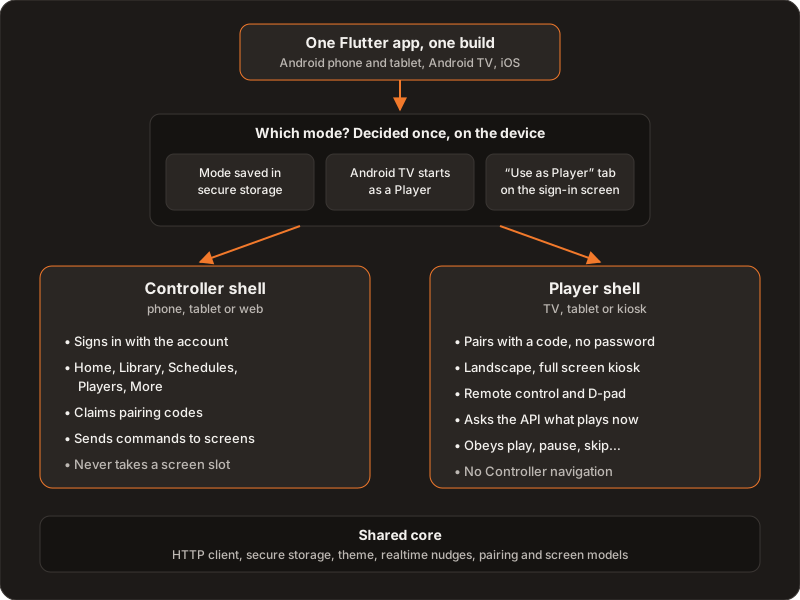
The app ships as a single package for Android phones and tablets, Android TV and iOS. The Android manifest declares the TV interface as optional, so the same APK shows up in the TV launcher and on a phone. What makes a device a Controller or a Player is not the binary but a value kept in the device’s secure storage: the operating mode.
That value is set the first time and honored on every start:
- On Android TV the app starts as a Player by default. Nobody wants to manage playlists with a remote, and a TV that powers on in the morning should go straight to playing.
- On phones and tablets the entry screen has two tabs: sign in, which leads to the Controller, and “Use as Player”, which pairs the device without anyone typing a password. An old tablet can become a screen in a minute.
To know whether it runs on a TV, the app asks Android once, at startup, for the official signals of that device type. It does not guess from the screen size: a large tablet in landscape is not a TV, and a TV is still a TV at a low resolution.
A single place where it forks
The app router only knows whether there is a session. The fork happens in one place: the home screen reads the mode and mounts one shell or the other. The Player shell contains no Controller navigation at all, not even hidden. A screen in a public place has no way to reach the content library or the account settings, however many buttons someone presses on the remote.
The code follows the same boundary. Each feature lives in its own folder and it is clear who it is for: content, playlists, schedules and subscription belong to the Controller; playback and the offline cache belong to the Player; pairing and the screen models are used by both. Underneath there is a shared core: HTTP client, secure storage, theme and realtime nudges.
What each mode does
The Controller signs in with the account and organizes the work in five sections: Home, Library, Schedules, Players and More. From there you claim the codes of new screens (see pairing screens with a code and a QR) and send commands to screens or groups: play, pause, stop, skip or restart. A Controller never registers itself as a screen: if it did, every phone that opens the app would take one of the plan’s screen slots.
The Player pairs with a code, locks to landscape and, on Android TV, switches to a full-screen kiosk mode without system bars. It is driven with the remote: the D-pad and media keys map the same way as in the web Player, so a technician who already knows a Samsung TV has nothing new to learn on an Android TV.
Ads follow the same split. On the free plan, the Controller shows an ad strip and the Player may insert ads between items, plus a discreet watermark. On Android TV the app shows no ads at all, not even on the free plan.
How the Player knows what to play
The Player does not decide what plays: it asks the API. It checks what is scheduled now every 20 seconds and whether there are pending commands every 4, but it usually finds out sooner: when something changes, the API sends it a nudge over a WebSocket and, in parallel, a push notification. That nudge is a doorbell, not the content: it does not say what to play, only that it is worth asking again. The API’s answer is always the source of truth, and if a nudge is lost, the next check fixes it. Remote commands are acknowledged: the Player replies with its playback state, and the Controller knows whether the command arrived.
Samsung and LG: same role, different implementation
Samsung (Tizen) and LG (webOS) TVs do not run Flutter. For them the Player is a Vue web app, from the same codebase as the dashboard, packaged as a TV app. It plays the same role as the Flutter Player and talks to the same API, but it is a separate implementation: the polling intervals, the remote key map and the way content changes are detected are kept identical by hand. What running inside a TV’s web engine involves is covered in CORS on smart TVs.
What we ruled out
- Two apps in the store. It doubles listings, reviews and releases, and forces the installer to know which one to download. With one app, any Android device can become a screen without looking for anything else.
- One build flavor per mode. A tablet that is a Controller today could not become a Player without reinstalling. A runtime mode changes it in seconds.
- Deciding by screen size. It mistakes large tablets for TVs and low-resolution TVs for tablets. The system signals do not.
- Hiding the Controller screens inside the Player. A hidden menu is still reachable. If the Player shell does not contain it, there is nothing to protect.
What we would do differently
Keeping two Players, Flutter and Vue, in manual parity works, but every behavior change has to be made twice and someone has to remember to do it. If we started today, we would write the Player contract (intervals, keys, when to switch content) first, as a shared specification with tests on both sides, instead of finding the differences by testing on the TV.
Further reading
How a screen joins the account: pairing screens with a code and a QR. How the API decides what plays: playlists, schedules and groups. The product: ChronoFlow. If your product also has to run on phones and TVs: Services.